
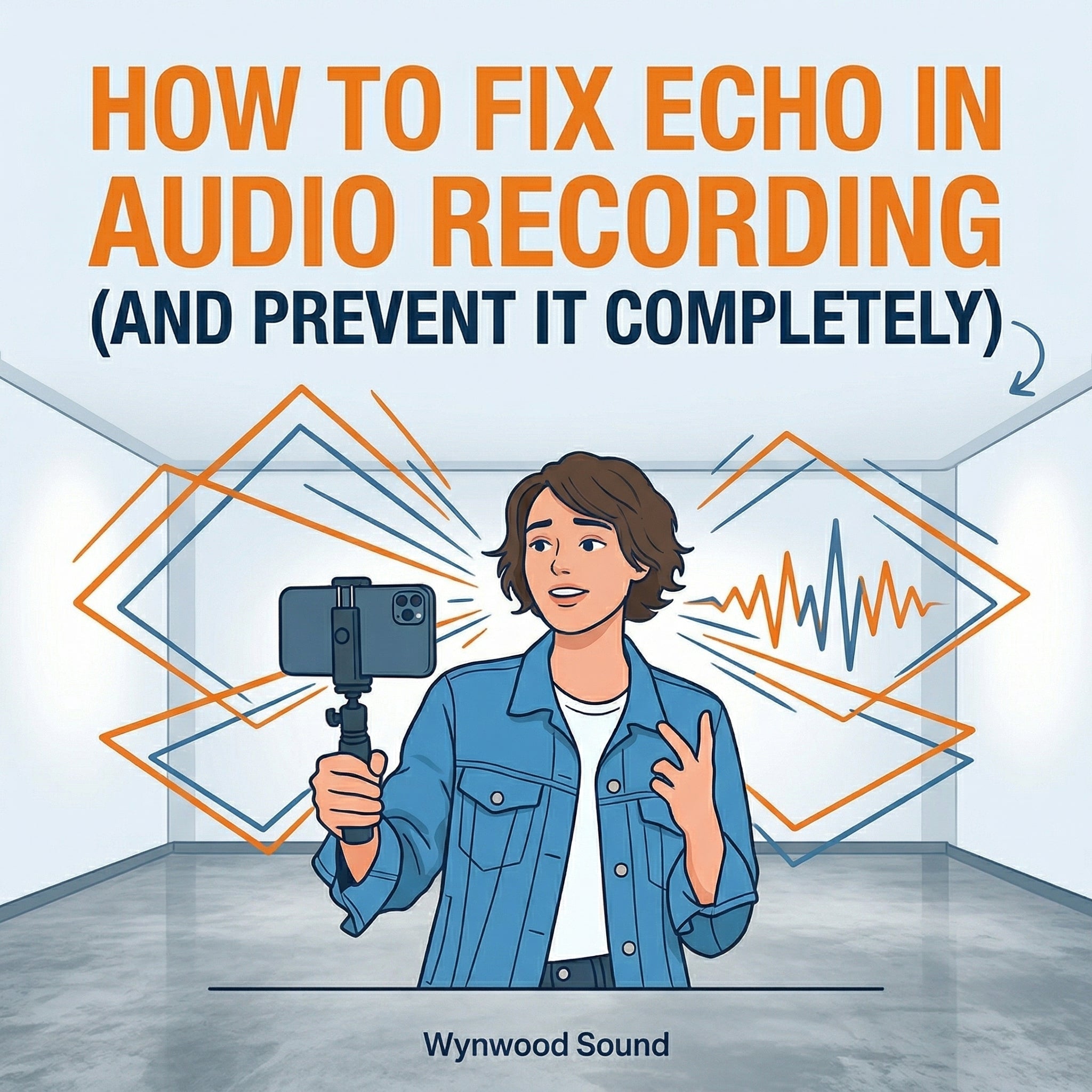
You found the perfect, quiet room to film your next video. There is no traffic outside, the air conditioner is off, and you deliver your lines perfectly. But when you sit down to edit, your heart sinks. You don’t sound like you're in a quiet room; you sound like you're recording at the bottom of a tiled swimming pool.
Echo—or reverberation, as audio engineers call it—is the silent killer of great content. It happens when your voice bounces off hard surfaces (like bare walls, hardwood floors, or desks) and hits your microphone a fraction of a second after the direct sound of your voice.
If your viewers have to strain to understand you through a hollow, muddy echo, they will simply swipe to the next video. Here is how you can fix echo in an existing recording, and how to upgrade your setup so you never have to deal with it again.
3 Ways to Fix Echo After Recording (Post-Production)
The hard truth about audio is that you can’t easily un-bake a cake. Once the echo is recorded alongside your voice, separating the two is incredibly difficult. However, if you are desperate to save a take, here are your best software options:
- Mobile Editor "De-Reverb" Tools: Apps like CapCut and desktop software like Premiere Pro offer native De-Reverb sliders.
-
- The Catch: These tools work by aggressively clamping down on the ends of your words. If you push the slider too high, your audio will start clipping and your voice will sound unnatural, choppy, and robotic.
- AI Audio Enhancers: AI tools like Adobe Podcast or Auphonic are currently the best software solution for stripping out room echo. They analyze your speech and essentially reconstruct your voice without the room noise.
-
- The Catch: This completely breaks your workflow. You have to detach your audio, export it, wait for the AI to process it on a server, download it, and manually re-sync it to your video timeline. Plus, heavy AI processing can sometimes alter the natural tone of your voice.
- Traditional Noise Gates and EQ: A noise gate mutes your audio track the millisecond you stop speaking, preventing the echo "tail" from ringing out between your words.
-
- The Catch: It doesn't remove the echo that happens while you are speaking, meaning your voice will still sound hollow. It also requires advanced knowledge of audio mixing to get right.
Beyond room treatment: how to stop echo at the source
Software fixes are just bandaids. If you want professional, podcast-quality sound, you need to fix the room—or fix how your microphone captures the room.
You could spend hundreds of dollars on acoustic foam panels, bass traps, and heavy moving blankets to deaden the sound of your recording space. But if you're a vlogger, real estate agent, or mobile creator, dragging acoustic blankets from room to room isn't exactly practical.
Without room treatment, best way to kill echo is to increase your direct-to-reverberant sound ratio. Traditionally, that means one of three techniques:
-
Use a less sensitive microphone. Dynamic handheld and podcasting mics naturally only pick up close-by sounds, which can reduce background noise and echo.
- The Catch: This comes at the expense of size and weight, making them less ideal for on-camera use.
-
Move the microphone closer to your mouth. There's a reason you see so many creators holding a tiny lapel mic right up to their mouth - it's an easy way to overpower the impact of background noise and echo.
- The Catch: Lapel mics aren't designed for this distance, making them prone to distortion and pops.
-
Use multiple microphones. With two carefully arranged mics it's easy to identify what's direct sound and what's echo, and simply subtract the echo from the primary signal.
- The Catch: It's effective, but complicated and more expensive.
Enter the CreatorMic: The best of both worlds
If all the above feels intimidating, the goods news is you don't need a massive, expensive studio setup to get clean audio. CreatorMic is a wireless, clip-on microphone system built specifically to eliminate room noise and echo instantly.
Here's how clipping on a CreatorMic leverages all the above solutions to solve your echo problem for good:
- Perfect Proximity: By clipping the microphone directly to your collar, the CreatorMic captures the rich, direct sound of your voice before it has a chance to bounce around the room, but at enough distance to avoid close-mic'ing issues.
- Dual capsules: Unlike cheap lavalier mics that pick up sound from every direction, the CreatorMic uses a dual-capsule design - basically the two mic setup above, but built right into one ultra-compact mic!
- Built-In signal enhancement: Built-in Digital Signal Processing (DSP) identifies and removes background noise dramatically. It's like having one of those AI-based removal running right on your mic.
Skip the Editing. Sound Great Instantly.
Trying to scrub echo out of a video is frustrating and time-consuming. By upgrading your hardware, you can turn any untreated room, hallway, or empty apartment into a perfect recording studio.
Ready to get your time back and sound like a pro? Grab the CreatorMic today and guarantee crystal-clear audio on every single take.